

A recipe can fail part-way: a form field was empty, a connected app rejected the request, or a plugin behind an action was deactivated. Uncanny Automator records every run in its logs, and it also has triggers that fire when a recipe completes with errors, so you can build a recipe that notifies you the moment another recipe goes wrong. This article covers the triggers to use, the tokens that carry the error details, and how to build the notification recipe in the 8.0 recipe builder.
The article assumes you have built a recipe before and know how tokens work. If not, start with Creating a recipe, Managing tokens, and Using Automator logs.
Why recipes complete with errors
A recipe completes with errors when one or more of its actions could not finish, or a recipe block could not run the actions inside it. The usual causes are:
- Missing or invalid data, such as an empty form field or a token that resolved to nothing.
- Data in the wrong format for the receiving app, such as a date the app does not accept.
- A problem at a connected app or plugin: an expired connection, an API error, or a rate limit.
- A plugin behind an action that has been deactivated. The action is recorded as Completed with errors with the message “The plugin for this action is not active.”
- A recipe block that could not run the actions inside it, such as a Queue block whose wait could not be worked out, or any recipe block while Uncanny Automator Pro is not active. The block’s actions are recorded as Skipped, and the block’s note in the run log says why.
Note: A Filter block whose conditions were not met is not an error. The run follows the block’s Conditions not met path, and if that path is empty the actions inside the block are recorded as Skipped and the recipe as Completed. The triggers below react to a recipe that ran and hit an error; they cannot tell you about a recipe that never started because its own trigger did not fire.
Why a notification recipe helps
An error notification recipe is an early warning for the automations your site depends on. Instead of discovering a failed enrollment or a missed follow-up from a customer, you hear about it first, with a link straight to the log entry. It is also the fastest way to catch problems that only appear under certain conditions, such as one product in a store whose data differs from the rest.
Triggers for error notifications
Uncanny Automator’s own integration, included in the free plugin, has three triggers built for this. The picker lists the integration as Automator Core. The two Everyone triggers appear in an Everyone recipe, alongside two triggers that count runs rather than errors (A recipe runs a number of time(s) and A recipe completes a number of time(s)), and the logged-in trigger appears only in a Logged-in users recipe. In a Logged-in users recipe the Everyone triggers are hidden while Ready-to-use only is on, and shown greyed out with “This trigger runs for everyone and cannot be used in a recipe for logged-in users.” when it is off.
In an Everyone recipe:
- A recipe completes with a specific status: choose the recipe to watch (or every recipe) and the status: In progress, Completed, Completed with errors, or Completed – do nothing. For error notifications, choose Completed with errors.
- A recipe completes with errors a number of time(s): fires only after the chosen recipe has failed the number of times you set, which keeps a one-off failure from paging you.
In a Logged-in users recipe:
- A user completes a recipe with errors: fires for the user whose run failed, so you can act on that user as well as notify yourself.
Actions to pair with them
Choose the action by where you want the alert to arrive and what you want to keep:
- Emails > Send an email: works on every site with no account to connect.
- A message in Slack, Discord, WhatsApp, or Microsoft Teams, so the alert lands where your team already looks.
- A row in Google Sheets or Airtable, to keep a running log of failures you can sort and filter.
- A task in ClickUp, so each failure is assigned and tracked.
Slack, Discord, WhatsApp, Microsoft Teams, Google Sheets, Airtable, and ClickUp are app integrations. Connect the app first at Automator > Settings > App integrations; until it is connected, the picker’s Ready-to-use only filter hides it. If you have Uncanny Automator Lite, you’ll first need to connect your site to a free Uncanny Automator account, which gives you app credits to use with these apps. On a paid plan, app integrations are included.
Tokens that carry the error details
Whichever action you choose, the notification is only useful if it says which recipe failed and where to look. These tokens come from the three triggers above; insert them with the ∗ button at the end of a field:
- Recipe ID and Recipe title
- Recipe status
- Recipe edit link: opens the recipe in the recipe builder.
- Recipe log URL: opens Automator > Logs with that run’s details displayed.
- Action log URL and Trigger log URL: open the Action or Trigger tab of the logs with the same run selected.
- Trigger completion date: when the notification recipe’s own trigger fired. Every trigger offers this token, along with Trigger ID and Trigger title.
A good minimum for an email is the recipe title, the status, and the recipe log URL.
Building the notification recipe
An error notification recipe is built like any other. The steps below use the email action; swap in any action from the list above.
- In your WordPress dashboard, go to Automator > Add new recipe.
- In the Select a recipe type modal, choose Everyone and click Confirm. (Choose Logged-in users if you want the A user completes a recipe with errors trigger.)
- Click Add trigger. In the picker, search for “Automator Core”, click Automator Core, then select A recipe completes with a specific status.
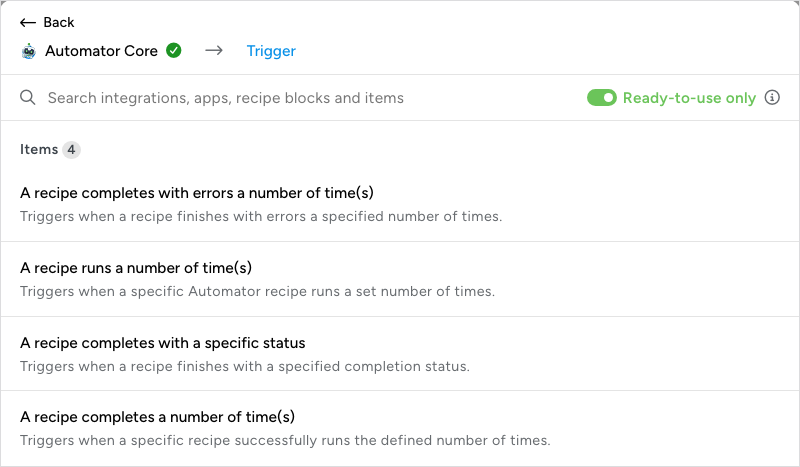
- In the Set up step, choose the recipe to watch, or leave it set to watch every recipe, and set the status to Completed with errors. Click Save.
- Click the + below the trigger and choose Emails > Send an email. Enter your address in To, write a subject such as “Recipe failed: ” followed by the Recipe title token, and put the Recipe status and Recipe log URL tokens in the body. Click Save, or Test to send yourself a test email first.
- Switch Recipe on in the top bar. The recipe now runs every time another recipe completes with errors.
Note: Give the notification recipe an unlimited run count. A new recipe’s Total times and Times per user are Unlimited, so leave them as they are; see Recipe settings: times per user, total times and throttling.
Related: Using Automator logs, Having trouble? Read this, Managing tokens, Recipe types: logged-in users and everyone

Comments (0)