

The Magic Button integration gives people a button, or a link, that completes a recipe trigger when they click it. It works like a custom WordPress button that can do almost anything a recipe can, with no code. This article covers adding a Magic Button or Magic Link trigger, placing it on a page with a shortcode or a block, the shortcode attributes, and how to confirm the click to the user.
Magic Buttons and Magic Links require Uncanny Automator Pro.
There are two ways to use them:
- As the recipe’s only trigger. Clicking runs the recipe’s actions right away, so the button can do anything Automator has an action for, or several things at once: enroll the user in a course, send them an email, and add a role.
- As one of several triggers. Clicking marks that requirement as done, and the actions run once the user has completed every trigger (with Change trigger logic set to All). This lets users complete a step Automator has no trigger for, such as confirming they have read a page.
Add a Magic Button trigger
- In your WordPress dashboard, go to Automator > Add new recipe, select Logged-in users or Everyone, and click Confirm.
- Click Add trigger. In the picker, search for Magic Button and select it.
- Choose the trigger. In a Logged-in users recipe, choose A user clicks a magic button or A user clicks a magic link. In an Everyone recipe, choose A magic button is clicked or A magic link is clicked. A Logged-in users recipe still lists the two Everyone triggers, greyed out with the note “This trigger runs for everyone and cannot be used in a recipe for logged-in users.”
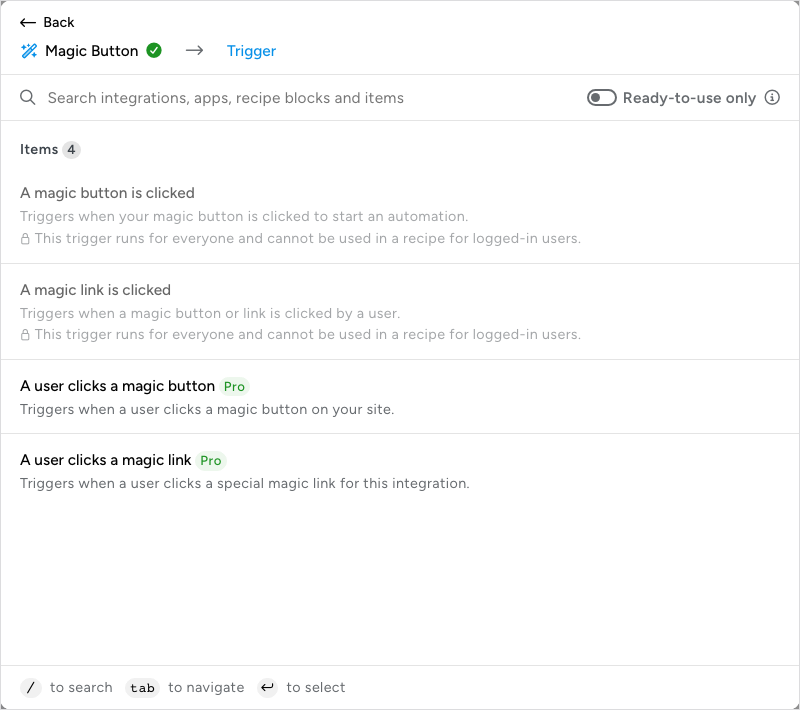
The button and the link behave the same way; only their appearance differs. The magic button trigger gives you the shortcode for a clickable button, and the magic link trigger gives you the shortcode for linked text.
- The trigger has no fields to fill in and no Test step. Click Save.
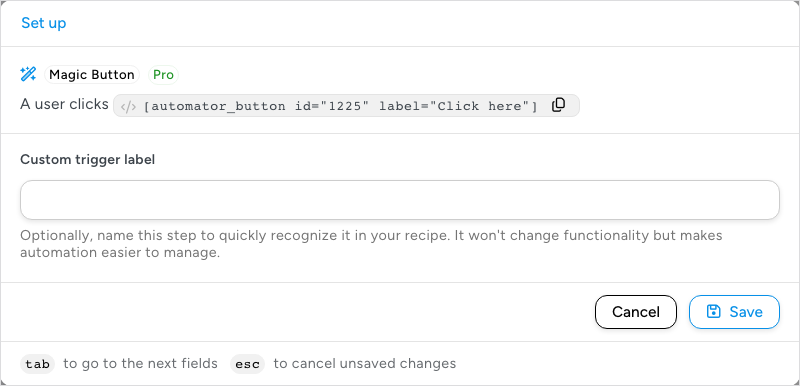
- Click the trigger on the canvas to open it again. Its sentence in the Set up step now contains the shortcode with the trigger’s ID, such as
[automator_button id="123" label="Click here"]. Click the copy button beside the shortcode to copy it. Copy it only after the first save: before that, the sentence shows a placeholder in place of the ID.
Add the recipe’s actions, then switch the recipe on with the Recipe on switch. The button does nothing while the recipe is off.
Place the button with a shortcode
Paste the shortcode on any page or post. The magic button shortcode is [automator_button] and the magic link shortcode is [automator_link]; both need the id of their trigger. These attributes change how they look and behave:
- label — the button’s text. Defaults to “Click here”. Magic button only.
- text — the link’s text. Defaults to “Click here”. Magic link only.
- is_ajax — set to
yesto run the recipe in the background without reloading the page. Defaults tono, which reloads the page. - submit_message — the text shown after the click while the recipe runs, when
is_ajaxisyes. Defaults to “Processing…”. - success_message — the text shown when the recipe has finished, when
is_ajaxisyes. Defaults to “Done”. - css_class — an extra CSS class added to the button or link, for your own styling.
- link_only — set to
yesto output only the link’s URL instead of a link, for use in your own HTML. Magic link only.
Here’s a magic button that runs the recipe without a page reload and shows its own messages:
[automator_button id="123" label="Enroll me" is_ajax="yes" submit_message="Processing" success_message="Done"]Place the button with a block
In the block editor, the Magic Button and Magic Link blocks do the same job without a shortcode.

Create the recipe and its Magic Button or Magic Link trigger first. The block’s Select a Magic Button or Select a Magic Link list then shows every trigger of that kind, by trigger ID and recipe title, so you can find the right one. The block also shows whether the recipe and the trigger are on. In the block’s settings you can change the button label or link text, turn on Enable AJAX submission, and set the submit and success messages, the same options as the shortcode attributes.
Confirm the click to the user
Without Ajax, clicking reloads the page the user is on, with no visible sign that anything happened. That can confuse people. Use one of these:
- Set
is_ajax="yes"(or turn on Enable AJAX submission in the block), so the button shows its submit and success messages. - Add a Redirect to a URL action at the end of the recipe to take the user to a page that says what was done and suggests next steps. See Working with redirects.
Related: Working with redirects, Managing triggers, Recipe types: logged-in users and everyone

Comments (0)