

PHP is the programming language WordPress and its plugins run on, and your web host decides which version your site uses. Uncanny Automator and Uncanny Automator Pro require PHP 7.4 or later, and we recommend PHP 8.4. This article covers what happens on an older version, how to check the version your site runs, and how to get it updated.
Why the PHP version matters
An outdated PHP version makes your site slower, and once a version stops receiving security fixes, your site is exposed to vulnerabilities that will never be patched. The PHP project lists which versions are still supported on its Supported Versions page. We recommend PHP 8.4. If your host can’t offer it yet, use the newest version it has that still receives security fixes.
On a version older than PHP 7.4, Uncanny Automator does not load. Instead, the WordPress admin shows a notice that Uncanny Automator “requires PHP 7.4 or higher to run properly” and that “all automations have stopped.” Your recipes start running again once the site is on a supported version.
Check your PHP version
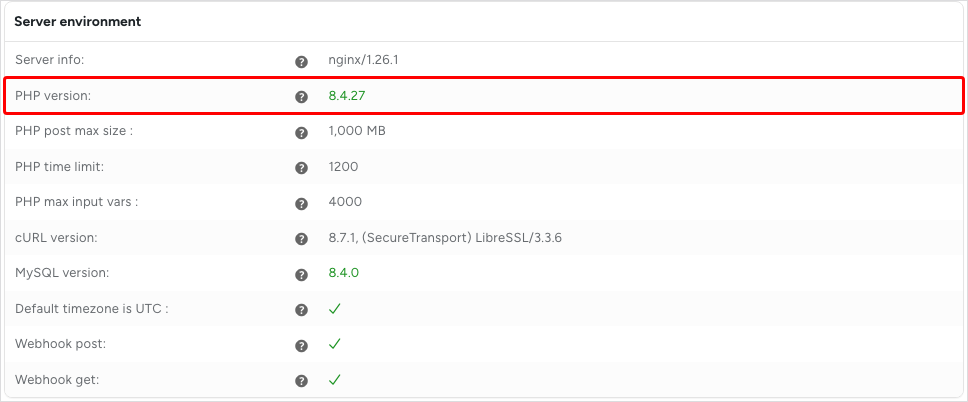
While Uncanny Automator is running, its status page shows the PHP version:
- In your WordPress dashboard, go to Automator > Dashboard.
- On the Status card, click View full status.
- On the Status tab, find PHP version in the Server environment section.
If Uncanny Automator isn’t loading because the version is too old, use WordPress instead: go to Tools > Site Health, open the Info tab, and expand Server.
Update your PHP version
Some hosting control panels let you choose the PHP version yourself. In most cases, though, you’ll need to contact your host and ask them to change it. Before switching a live site, ask your host whether they can test the new version on a staging copy first, so a plugin or theme that isn’t ready for it doesn’t take the site down.
Related: Troubleshooting plugin errors, Setup wizard and dashboard, Installing Uncanny Automator

Comments (0)