

The Schedule integration in Uncanny Automator Pro starts a recipe on a timetable instead of in response to something a user does: once on a chosen date, every few hours or days, or on particular weekdays. Pair a Schedule trigger with a Loop block to send a weekly digest to every member, or with a report action to post a summary to Slack each morning. This article covers the three Schedule triggers, the Scheduled recipes page where pending runs are listed, and the timing caveats that apply to any scheduled recipe.
A Schedule trigger starts the whole recipe. To delay or schedule some of the actions inside a recipe that is started by something else, use the Queue block instead; the difference is explained below.
Add a Schedule trigger
Schedule triggers run for everyone rather than for a logged-in user, so they belong in an Everyone recipe. In a Logged-in users recipe the picker shows them disabled with the note “This trigger runs for everyone and cannot be used in a recipe for logged-in users.” If the recipe’s actions need a user, set the Run recipe as card, or loop over users with a Loop block; see Recipes for Everyone.
- In your WordPress dashboard, go to Automator > Add new recipe, select Everyone, and click Confirm.
- Click Add trigger, search for Schedule, and select the integration.
- Select one of the three triggers described below.
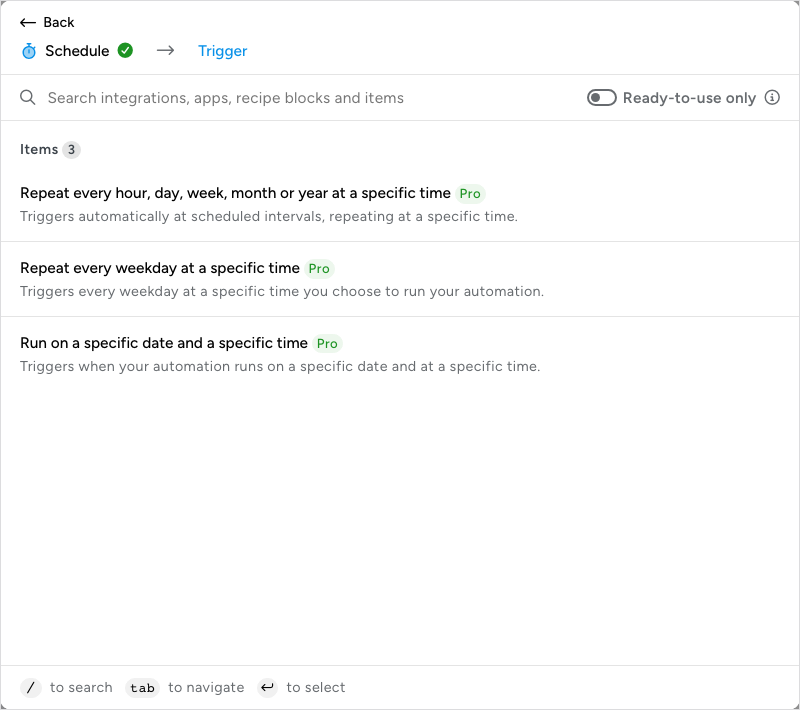
Fill in the trigger’s fields as described below, then click Save. Schedule triggers have no Test step, so the Set up step ends with Cancel and Save.
Every Schedule trigger has a Time field: the time of day the recipe runs, chosen with a picker for the hour, minute and AM or PM, and set to 12:00 AM until you change it. Times follow your site’s timezone, set under Settings > General in WordPress.
Repeat every hour, day, week, month or year at a specific time
Runs the recipe on a regular interval. The fields are:
- Every — the number of units between runs, as the field’s hint says. Decimals are allowed: 0.5 with Hour(s) runs every 30 minutes. The smallest interval is five minutes (0.0833 hours).
- Unit — Hour(s), Day(s), Week(s), Month(s), or Year(s).
- Repeat — how many times the recipe runs: Until cancelled, 1 time, 2 times up to 20 times, or Use a token/custom value at the bottom of the list to type another number. A custom number above 50 is capped at 50 runs.
- Time — the time of day for each run.
Choosing Month(s) adds a day field. With a number of runs in Repeat, it is Specific day: the day of the month the recipe runs, from 1 to 31, or Last day of the month. Days late in the month need care: as the field explains, “For dates later in the month, the recipe will run on the 1st of the following month if the current month doesn’t have that date.” To run at month end, choose Last day of the month rather than 30 or 31.
With Until cancelled, the day field is Start day instead: the day of the month of the first run, from 1 to 31. After that, as the field explains, the recipe runs every 30 days times the number in Every, until you switch the recipe off.
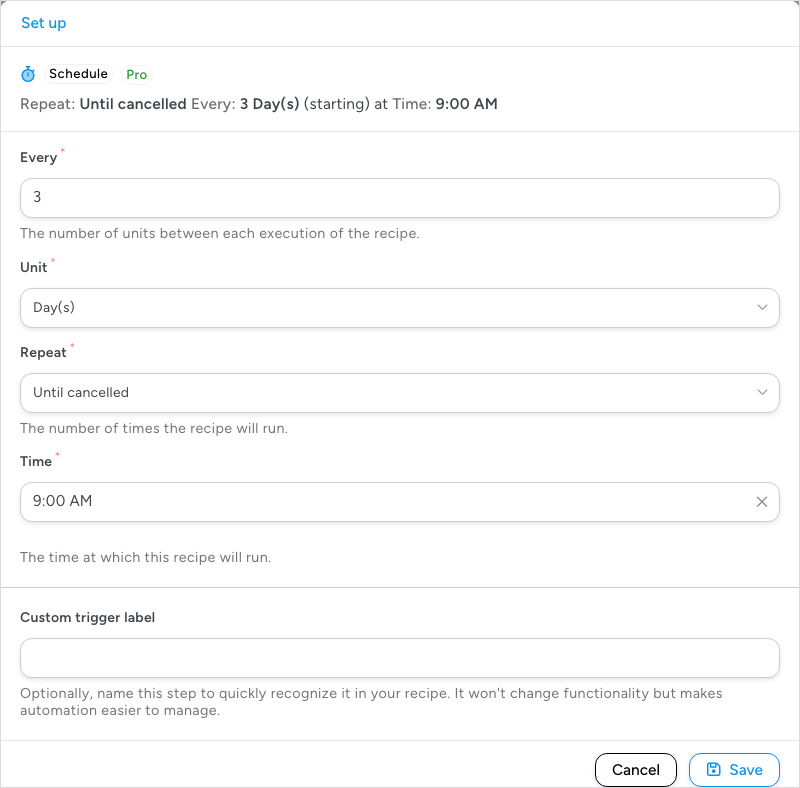
A recipe set to Every 3, Unit Day(s), Repeat Until cancelled, and Time 9:00 AM runs at 9:00 AM every third day until you switch the recipe off.
Repeat every weekday at a specific time
Runs the recipe on the days of the week you choose. Weekday accepts several days: select Monday, Wednesday, and Friday and the recipe runs on all three. Time is shared by every selected day, so a 2:00 PM time means 2:00 PM on each of them. Repeat works as in the recurring trigger.
Run on a specific date and a specific time
Runs the recipe once. Enter the Date (yyyy-mm-dd) and the Time. Use it for a one-off job such as sending a launch announcement to every subscriber at midnight on launch day, or closing enrolment for a course on a fixed date.
Switch the recipe on
Nothing is scheduled until the recipe runs. Switch Recipe on in the top bar, and Automator queues the next run from the trigger’s settings. Switching Recipe off, or switching the trigger itself Off, cancels every pending run; switching back on schedules them again from the current settings. Changing the trigger’s fields while the recipe is on replaces the pending runs with runs based on the new settings; saving the trigger without changing any field keeps the next run where it is. Moving the recipe to the trash removes its schedule.
The Scheduled recipes page
While a recipe with a Schedule trigger is switched on, Automator > Scheduled recipes appears in the WordPress admin menu. (It is also listed while the recipe builder is open.) If you do not see it, no scheduled recipe is currently live.
The page, headed Pending Scheduled Recipes, lists every run that is waiting, sorted by Next run time. Each row shows the Recipe (with its ID and a link to the builder), the Trigger settings in words such as “Every 3 Day(s) at 9:00 AM until cancelled”, whether the schedule is Recurring, how many runs are queued under Repeated, and two buttons. A dropdown above the table filters the list to one recipe.
- Run now — runs the recipe within a few seconds, after you confirm “Are you sure you want to run this recipe now?”. The scheduled run stays in the queue, so the recipe runs one extra time. The page reports “The recipe is queued to run shortly.”
- Cancel — removes that entry from the queue. For a one-time or counted schedule, the confirmation reads “Are you sure you want to cancel this run?” and only that run is removed; other queued runs of the same recipe remain. For an Until cancelled schedule, it reads “Are you sure you want to cancel all future runs?” because the single recurring entry is what repeats. The page reports “Scheduled recipe cancelled successfully.”
To stop every run of a recipe at once, open the recipe and switch Recipe off.
The page lists Schedule-trigger runs only. Actions waiting inside a Queue block are not shown here; they appear under Delayed actions on the recipe canvas and in the recipe’s log.
Schedule trigger or Queue block
Both involve time, and they are easy to confuse:
- A Schedule trigger starts a recipe. The timetable is the event. There is no user action involved, which is why the recipe is an Everyone recipe.
- A Queue block delays actions inside a recipe. The recipe is started by its own trigger (a purchase, a form submission, a course completion), and the actions inside the block run later, after a set time, at a scheduled date, or at a time taken from a token. The rest of the recipe continues at once.
To send a reminder three days after each purchase, use a WooCommerce trigger and a Queue block. To send every customer a newsletter on the first of the month, use a Schedule trigger and a Loop block.
Things to know
- Timing depends on your site’s cron. Scheduled runs are queued as background jobs that WordPress processes with WP-Cron, which runs only when the site receives traffic. On a low-traffic site a recipe due every 2 hours may run at 2.5 hours instead. If exact timing matters, ask your host about a server-side cron that calls
wp-cron.phpon a fixed interval. - Times are in the site’s timezone. Automator reads the timezone from Settings > General. Check it before scheduling a recipe for an audience in another region.
- Recurring schedules are anchored to the chosen time. When a schedule that repeats until cancelled runs a little late, the next run is still placed at the configured time, including across daylight-saving changes, as long as the interval is a whole number of hours or days (weekday schedules included); hourly schedules keep the same minute past the hour. Intervals under an hour or with a fraction, such as every 0.5 hours, are not anchored, so a late run moves the ones after it. A schedule with a set number of repeats has all its runs queued in advance.
- Run now is a different trigger. The Run now integration runs a recipe when you click a button. Use it, rather than a Schedule trigger set a minute ahead, to run a bulk job on demand; see Run now: trigger a recipe manually.
Related: Queue block: delaying and scheduling actions, Run now: trigger a recipe manually, Loop block: users, posts and tokens, Bulk update users with a recipe, Recipes for Everyone

Comments (0)