

The Restrict Content Addon adds a Restrict Content integration to the recipe builder, so access levels can start recipes, be granted or removed by recipes, and decide which actions run. The integration has two triggers, two actions, two conditions for the Filter block, two loop filters for the Loop block, and two tokens that report a user’s access levels. This article lists each with its fields and shows how to add an access level condition in the Uncanny Automator 8.0 recipe builder.
You need the Restrict Content Addon installed and active, which requires the Plus or Elite plan, and at least one access level, created at Automator > Settings > Addons > Restrict content (see Restrict WordPress Pages & Posts). The conditions and loop filters also need Uncanny Automator Pro, because the Filter block and the Loop block are Pro.
Triggers
Both triggers fire when a user’s access changes, whether the change was made by an administrator on the user’s profile, by a recipe action, or by anything else that adds or removes the user. They need a user, so they belong in Logged-in users recipes.
- A user is added to an access level — fires when the user gains the level. Use it to grant what the level stands for: enrol the user in a course, add them to a group, or send a welcome email.
- A user is removed from an access level — fires when the user loses the level. Use it to tidy up: remove the course enrolment, drop a CRM tag, or notify the user.
Each trigger has one field, Access level, listing the site’s access levels plus Any level, which fires for every level. Both triggers add the tokens Level name and Level slug alongside the selected access level, so an email can say which level the user gained or lost.
Actions
- Add the user to an access level — grants the level to the recipe’s user. A typical recipe adds the user to a level when they buy a product or complete a course.
- Remove the user from an access level — takes the level away. A typical recipe removes the level when a subscription expires or a refund is issued.
Each action has one field, Access level. It lists the site’s levels and also accepts a custom value, so you can insert a token that holds a level ID, for example from a form field. If the user already has the level you are adding, or does not have the level you are removing, the action does not change anything and writes “The user was already in the specified access level” or “The user was not in the specified access level” to the log, where the action’s status reads Completed with errors.
Restricting content and granting access are two halves of one setup: the level decides who can see a page, post, block, or shortcode, and the actions decide who holds the level. See Restrict Content Shortcodes and Restrict Content for Blocks for the content side.
Conditions for the Filter block
Conditions are the modifiers of a Filter block: the actions in the block’s CONDITIONS MET path run only when the conditions pass, and the CONDITIONS NOT MET path runs otherwise. The addon provides two:
- The user is in an access level — passes when the recipe’s user holds the selected level.
- The user is not in an access level — passes when the user does not hold it.
Each has one required field, Access level. Both need a user. When you add one to an Everyone recipe, the builder adds the Run actions as card for you, unless the Filter block sits inside a Users loop, which already supplies the user. Open the card and finish setting it up so the condition has a user to check. If the card finds no user and If the user doesn’t exist is set to Skip the action, every action after the card is skipped, in both paths, and the run is logged as Completed, do nothing. The condition itself is still checked against the user who triggered the recipe, if any, not the user the card looks for, so set up the card so that it always finds the user.
Adding an access level condition
This example sends an upgrade offer only to users who do not already hold the Premium level.
- Open the recipe and click the + at the end of the flow. In the picker, under Recipe blocks, click Filter.
- Leave Condition match mode on its default, Any, and click Save. With a single condition the two modes behave the same.
- On the Filter block, click Add modifier.
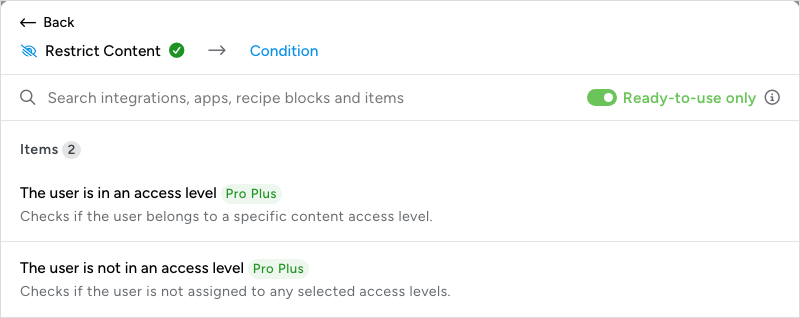
- In the picker, search for “Restrict Content”, click Restrict Content, then The user is not in an access level.
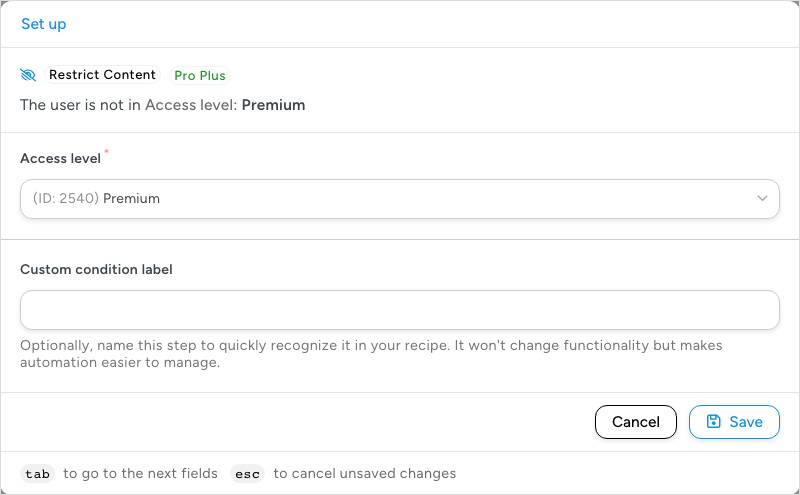
- In the Set up step, choose the level under Access level. Give the condition a Custom condition label if the sentence alone will not be clear on the canvas.
- Click Save. The condition appears in the block’s modifiers row as “The user is not in Access level: Premium”.
- Click + Add in the CONDITIONS MET path and add the action that should run for these users, such as Emails > Send an email. Leave CONDITIONS NOT MET empty, or add a different action for users who already hold the level.
When the condition fails, the recipe log records why, in the form ‘User is in “Premium” access level’ or ‘User is not in “Premium” access level’, so you can see which path a user took and the reason. If the selected level has since been deleted, the condition is treated as met.
Loop filters for the Loop block
Loop filters are the modifiers of a Loop block and decide which users the loop processes. The addon provides the same two tests as loop filters, for a loop whose Loop type is Users:
- The user is in an access level — the loop runs for every member of the selected level.
- The user is not in an access level — the loop runs for every user on the site who is not a member of it. This includes administrators and every other role, so pair it with a filter such as User has a specific role to narrow the set.
Each has one required field, Access level. To add one, click Add modifier on the Loop block, click Restrict Content, choose the filter, select the level, and click Save. A user must pass every filter on the block, so you can combine an access level filter with LearnDash, WooCommerce, or WordPress filters. Typical uses: email every member of a level, or add every buyer of a product to a level in one run. For the whole pattern, including the Run now trigger and reading the log, see Bulk update users with a recipe.
Tokens
With the addon active, the token picker’s Global tab gains a Restrict Content section with two tokens for the recipe’s user. Both return a comma-separated list, or nothing if the user holds no level:
- User’s access levels — the names of the levels the user holds, for example “Members, Premium”.
- User’s access level ID(s) — the IDs of those levels, for use in another action’s custom value field or a webhook.
The two triggers also provide Level name and Level slug for the level that fired them.
Related: Restrict WordPress Pages & Posts, Restrict Content Shortcodes, Restrict Content for Blocks, Filter block and conditions, Loop block: users, posts and tokens, Bulk update users with a recipe, Managing tokens.

Comments (0)