

Uncanny Automator records every recipe run in its logs, so you can confirm that a recipe is working and see which triggers and actions completed, which did not, and why. This article covers the four tabs of the logs page, Recipe, Trigger, Action, and AI activity, and how to clean up log entries you no longer need.
In your WordPress dashboard, go to Automator > Logs. Each tab has filters above its table, for example by recipe, by status, by user, or by date. Choose the filters and click Filter.
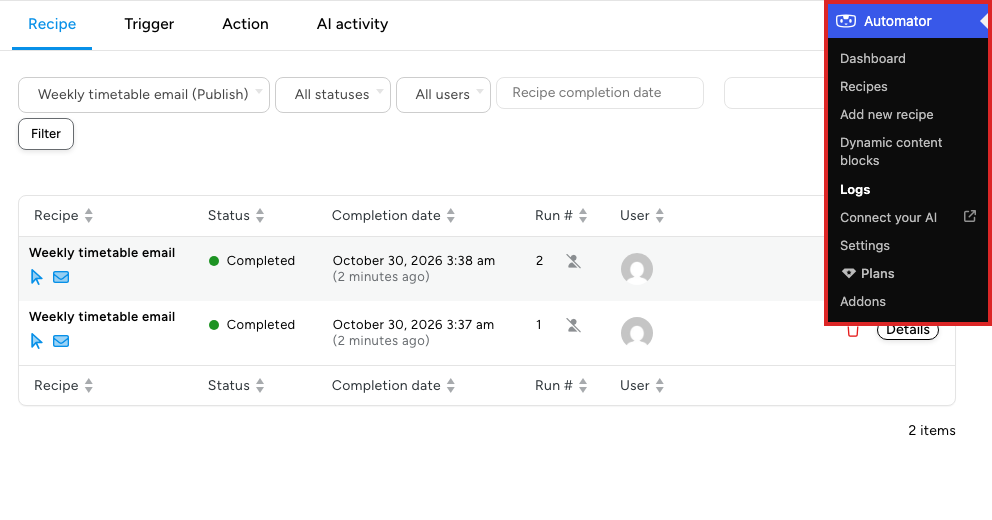
To see the runs of a single recipe, open it in the recipe builder and click View logs in the Details panel of the sidebar.
Recipe log
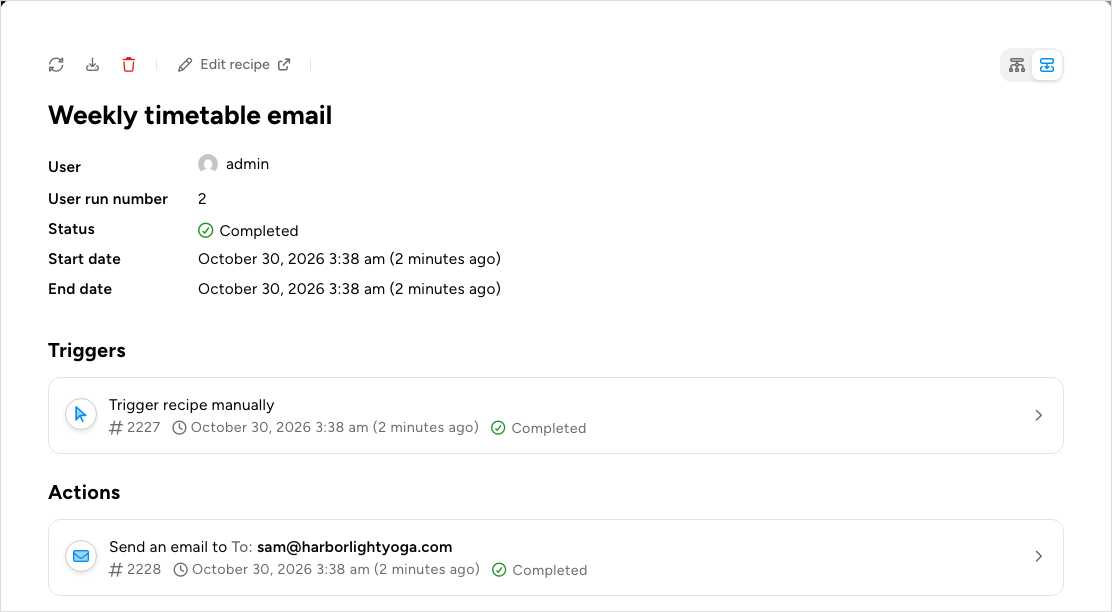
The Recipe tab shows the overall progress of each recipe run, taking all of the recipe’s triggers and actions into account. Most entries are either In progress, where some but not all of the triggers have been completed, or Completed, where the triggers were met and the actions ran. A status such as Completed with errors tells you a run needs a closer look. The tab is the quickest way to see activity at a glance. To dig deeper, click Details on a row to see the triggers and actions of that run. The details show the run as a diagram or as a list; switch between them with the two buttons at the top right.
A recipe block that could not run the actions inside it, such as a Queue block whose wait could not be worked out, reads Completed with errors in the details, its actions read Skipped, and the run reads Completed with errors. Click View details on the block: its Notes row says why.
Trigger log
The Trigger tab is a detailed record of every trigger, in every recipe, that has been tracked on the site. In effect, it’s an overview of all the user and webhook activity on the site that your recipes respond to.
Action log
The Action tab shows everything that has happened on the site as a result of your recipes. It’s the place to start when a recipe doesn’t do what you expect, because when an action fails, this is where the details are. Check the Notes column: it shows errors such as a user that no longer exists or a Slack channel that has been deleted.
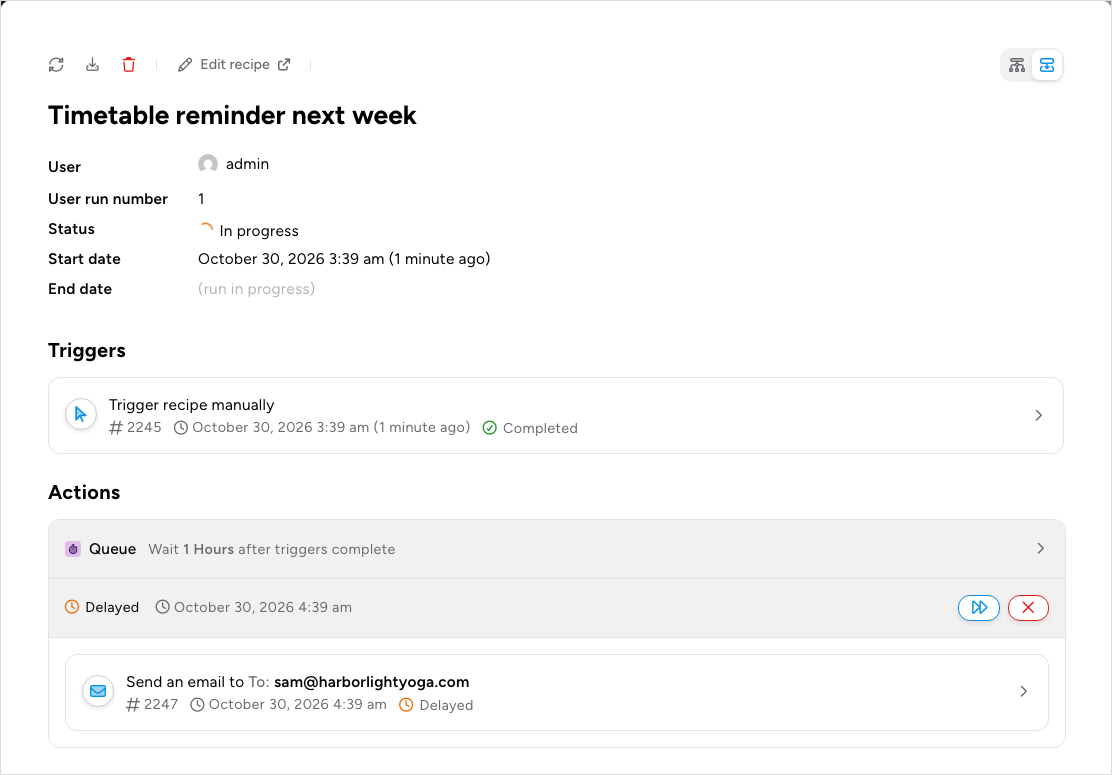
Actions inside a Queue block (which requires Uncanny Automator Pro) wait in the log until their time comes. While a Queue block is still waiting, the run stays In progress. To act on it, click Details on the run in the Recipe tab. In the Actions section, the Queue block shows a Delayed row with the time its actions will run and two buttons: the blue button runs the queued actions straight away, and the red X cancels them. Actions queued inside a Loop block don’t have these controls.
AI activity
The AI activity tab lists what the AI apps connected through mcp.automatorplugin.com have done on your site, next to each AI app’s connection steps: asking to connect, being approved or refused, and being disconnected. Each entry shows the Activity, the AI that did it, the Result (such as Done, Not allowed, Approved, or Refused), and the Date. Filter by AI, by activity type (Tool uses or Connections; a tool use is one thing your AI does on your site through Uncanny Automator), by result, or by a date range (two date fields), then click Filter; or search the entries. The tab is shown to administrators, and it reads “No AI activity yet.” until an AI has done something on the site.
Cleaning up the logs
Log entries take up very little space and don’t affect Automator’s performance, but you may want to remove entries you no longer need once recipes have completed. The settings are at Automator > Settings > General > Data management.
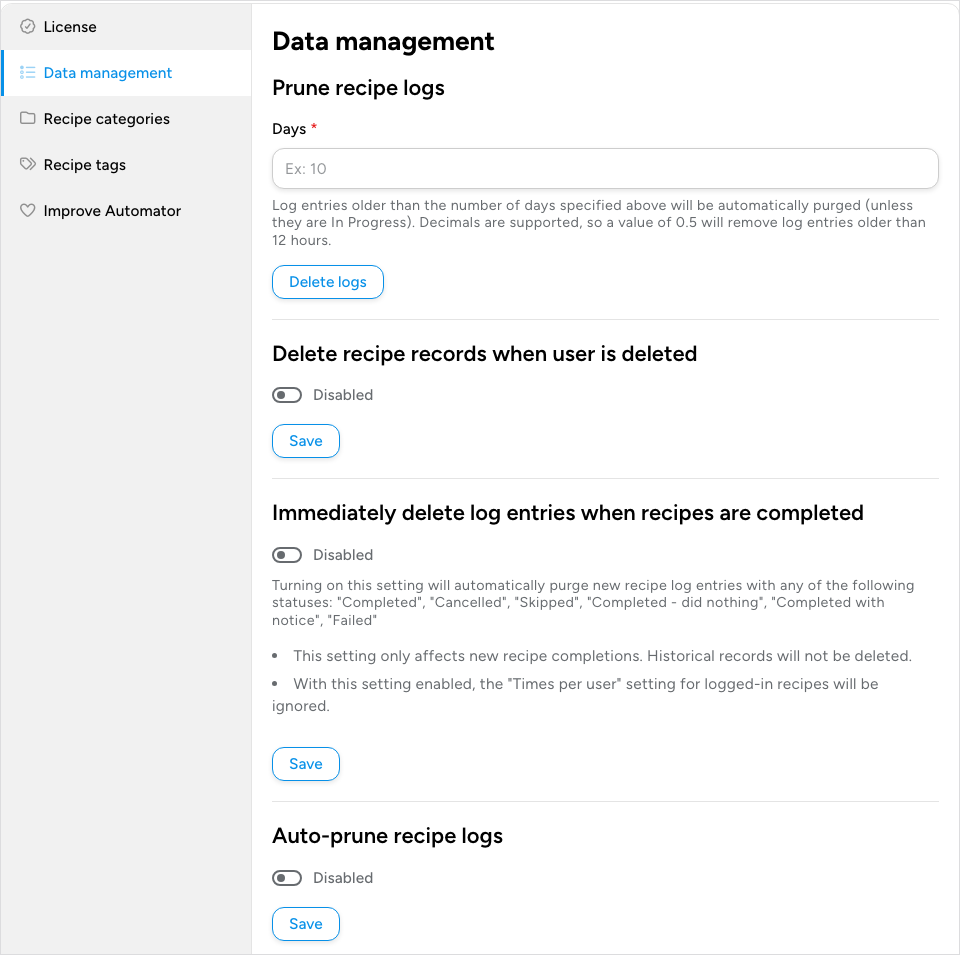
- Prune recipe logs: enter a number of Days and click Delete logs to delete log entries older than that, except runs that are still in progress. Decimals work, so 0.5 removes entries older than 12 hours. After the first prune, the date of the last one is shown above the field as Action last performed on:.
- Delete recipe records when user is deleted: when this is Enabled, deleting a WordPress user also deletes that user’s recipe records, so the logs don’t keep entries for people who are no longer on the site.
- Immediately delete log entries when recipes are completed: when this is Enabled, new recipe log entries are deleted as soon as the run finishes with one of the statuses listed under the switch. It affects new runs only; existing records stay. Because the run history is gone, Times per user is ignored for Logged-in users recipes while this is on.
- Auto-prune recipe logs: requires Uncanny Automator Pro. Switch it on and set Remove logs older than to a number (10 until you change it) and a unit, from minutes to years, to clear old entries automatically.
The switches are Disabled until you turn them on; click Save under a switch after changing it. You can also prune from the command line with WP-CLI. To see the options:
wp automator prune --helpTo delete every log record at once, use Reset Automator log tables on the Tools tab of Automator > Dashboard > View full status; see Setup wizard and dashboard. To clear the logs of a single recipe, click Clear activity logs under its title on Automator > Recipes.
Delete all Automator data
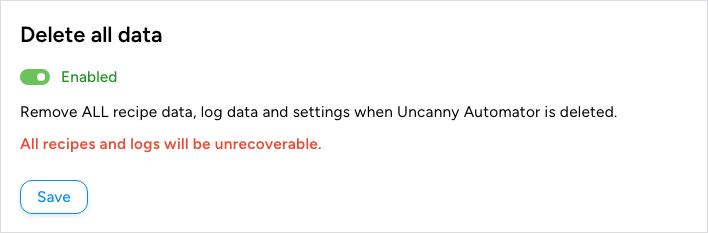
If you plan to remove Uncanny Automator from the site for good, go to the same Data management settings, switch Delete all data to Enabled, and click Save. Then deactivate and delete the plugin. Every recipe, log entry, and setting is removed when the plugin is deleted, and none of it can be restored.
Related: Having trouble? Read this, Setting up error notifications, Queue block: delaying and scheduling actions, Setup wizard and dashboard

Comments (0)