

The Send data to a webhook action can send its Body as a JSON array when the receiving service expects a list rather than a single object. This article explains what a JSON array is, how numbered keys in the Body build one, and three examples you can copy.
What is a JSON array?
A JSON array is an ordered list of values inside square brackets, [ ], separated by commas. The values can be numbers, strings, objects, or further arrays. W3Schools has a longer introduction.
A JSON object is different: a set of named key/value pairs inside curly braces, { }. Check which of the two the receiving service expects before you build the Body; its documentation usually shows an example payload. For objects, see Sending a JSON object with outgoing webhooks.
Action settings for these examples
Add and set up the action as Send data to a webhook describes, with these values:
- URL — the address the receiving service gives you.
- Request method — POST, which a new action opens on. Change it only if the service’s documentation asks for PUT or another method; GET hides Data format and sends the Body as URL parameters.
- Data format — JSON. The examples need it: with the x-www-form-urlencoded default, key paths are not turned into nested data.
- Body — starts empty. Click Add pair once for each row in the example you follow.
- Authorization and Headers — as they are, unless the service asks for a key, a token, or a specific header.
How numbered keys build an array
A Body key that starts with a number makes the payload an array, and the number is the item’s position, counted from 0. A forward slash in a key nests one level deeper. A single row with Key 0/name and Value John sends an array whose first item is an object with a name:
[
    {
        "name": "John"
    }
]
A second row with Key 1/name and Value Jane adds a second item:
[
    {
        "name": "John"
    },
    {
        "name": "Jane"
    }
]
Number the items 0, 1, 2 and so on, in order. A number further along a key path, such as 0/stock/0/value, puts an array inside an item; Example 3 below uses this.
The Data type column decides how each value is written. Text, the default, puts the value in quotes, even a number; choose Number for values the service expects as numbers. Boolean and NULL send true, false, or null. The values can be tokens from the recipe instead of typed text; Send data to a webhook explains each data type and how to insert a token.
Check the payload before sending
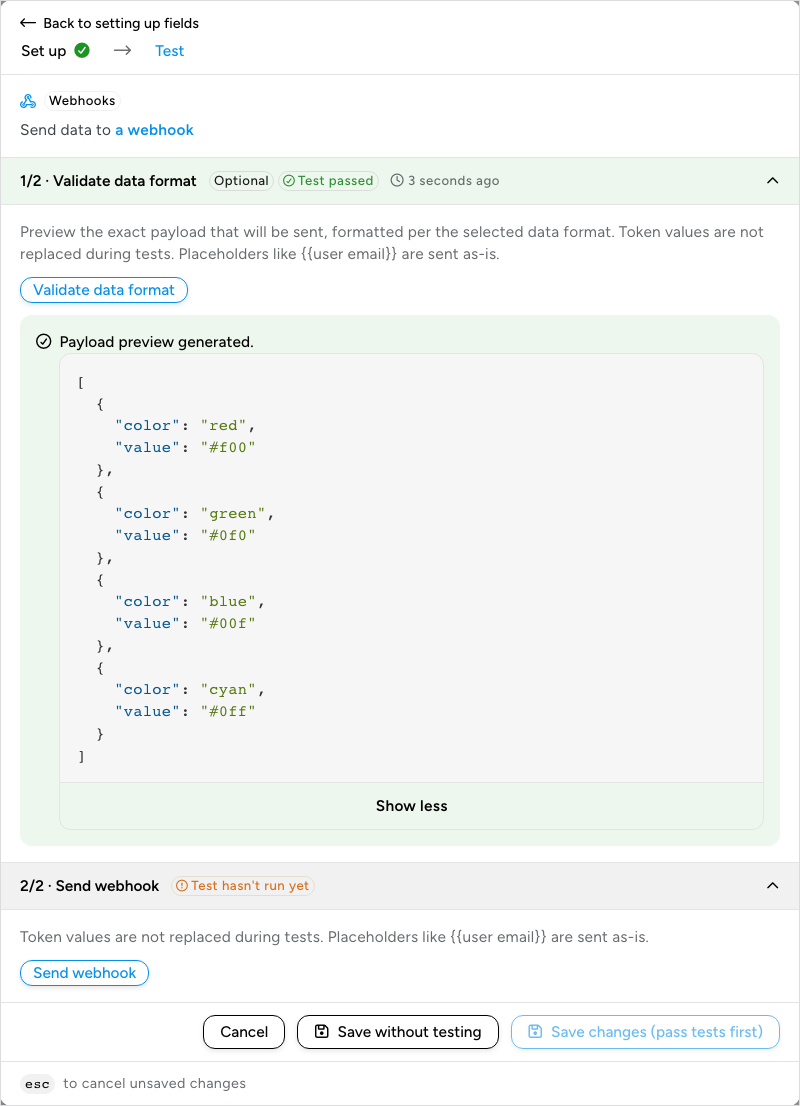
Click Test and run Validate data format in the Test step. It shows the exact payload without sending it, under “Payload preview generated.” A long preview is folded: click the Show more lines button under it (the label includes the number of hidden lines) to see all of it. Compare it with the service’s example, go Back to setting up fields to adjust a key, and check again. The Test step and its Send webhook test are described in Send data to a webhook.
Example 1: a simple array
The payload the service expects is a list of five numbers:
[
    100,
    500,
    300,
    200,
    400
]
The Body rows. Each key is only the item’s position, and the values are set to Number so that they are not sent in quotes.
| Key | Data type | Value |
|---|---|---|
0 |
Number | 100 |
1 |
Number | 500 |
2 |
Number | 300 |
3 |
Number | 200 |
4 |
Number | 400 |
Example 2: an array of objects
The payload is a list of four colors, each an object with a color and a value:
[
    {
        "color": "red",
        "value": "#f00"
    },
    {
        "color": "green",
        "value": "#0f0"
    },
    {
        "color": "blue",
        "value": "#00f"
    },
    {
        "color": "cyan",
        "value": "#0ff"
    }
]
The Body rows, two per item:
| Key | Data type | Value |
|---|---|---|
0/color |
Text | red |
0/value |
Text | #f00 |
1/color |
Text | green |
1/value |
Text | #0f0 |
2/color |
Text | blue |
2/value |
Text | #00f |
3/color |
Text | cyan |
3/value |
Text | #0ff |
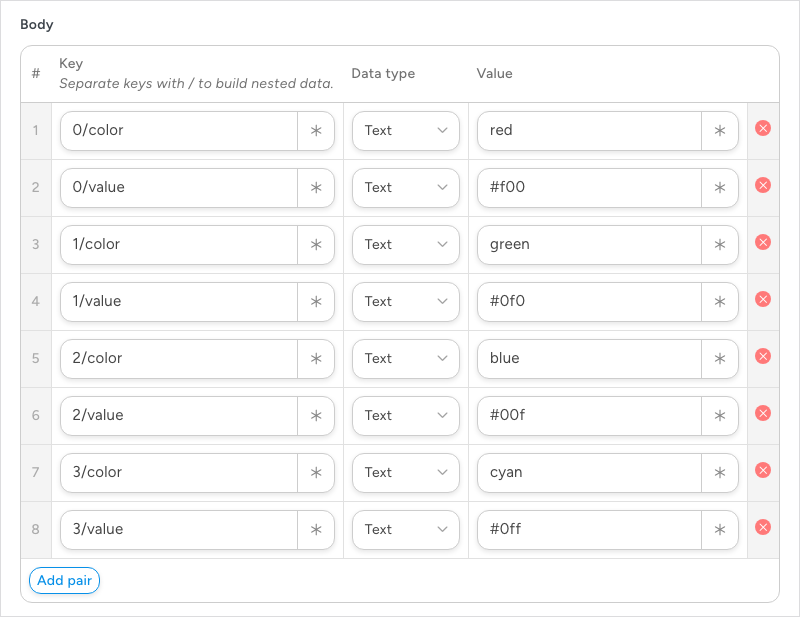
Validate data format shows the array before anything is sent:
Example 3: a complex array with nested arrays
The payload is an array holding one object, whose data array holds one product with its own stock and handling_time arrays:
[
    {
        "data": [
            {
                "id": 282727,
                "status": 1,
                "vat_id": 1,
                "stock": [
                    {
                        "warehouse_id": 1,
                        "value": 1
                    }
                ],
                "handling_time": [
                    {
                        "warehouse_id": 1,
                        "value": 1
                    }
                ],
                "sale_price": 12000
            }
        ]
    }
]
The Body rows. Every key starts with 0/data/0/, the first product of the first item, and every value is a number:
| Key | Data type | Value |
|---|---|---|
0/data/0/id |
Number | 282727 |
0/data/0/status |
Number | 1 |
0/data/0/vat_id |
Number | 1 |
0/data/0/stock/0/warehouse_id |
Number | 1 |
0/data/0/stock/0/value |
Number | 1 |
0/data/0/handling_time/0/warehouse_id |
Number | 1 |
0/data/0/handling_time/0/value |
Number | 1 |
0/data/0/sale_price |
Number | 12000 |
Related: Send data to a webhook, Sending a JSON object with outgoing webhooks, Testing triggers and actions

Comments (0)