

The Calculation token works out a value from a formula each time the recipe runs. A formula can be simple arithmetic or use more advanced functions, and it can include other tokens, so a recipe can add to, subtract from, or multiply numbers that come from the trigger, the user, or a post.
A simple use is a counter: each time the recipe runs, look up a number stored in the user’s meta, add 1, and save the new value. A more advanced recipe might look up an expiration date stored as a Unix timestamp and add a week to it.
Add a calculation to a field
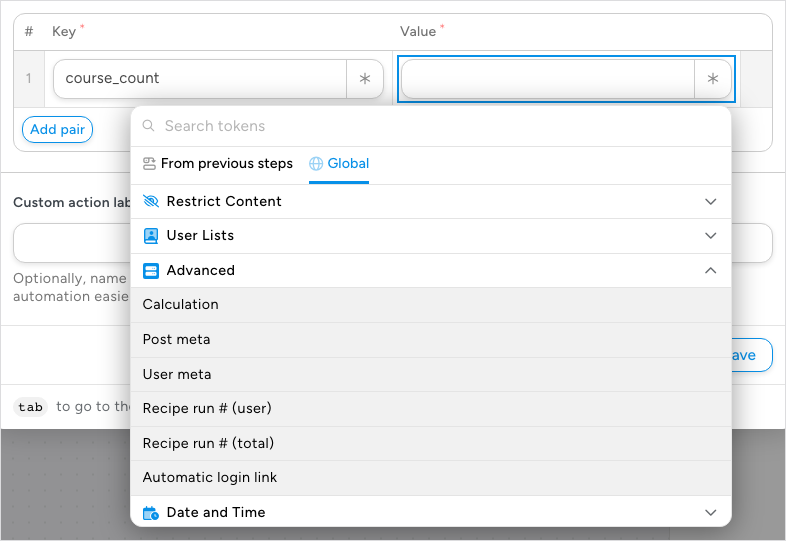
- In the action’s Set up step, click the ∗ button at the end of the field that should receive the result.
- In the token picker, search for Calculation, or open the Global tab, expand Advanced, and click Calculation. Managing tokens explains the picker.
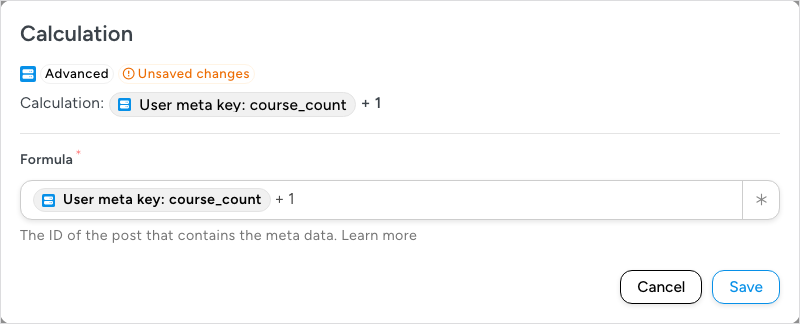
- The Calculation dialog opens with one field, Formula. Type the formula, using the ∗ button at the end of the field to insert tokens into it. Above the field, the line beginning Calculation: repeats the formula as you type it.
- Click Save. The token appears in the action field as a chip that reads Calculation: followed by your formula. Closing the dialog without saving inserts nothing.
Note: Earlier versions listed the Calculation token in a Modifiers group. It is now in the Advanced group, and it is unrelated to the modifiers inside a Filter block or a Loop block, which are conditions and loop filters.
Example: a course counter
This counter keeps a running total in a user meta key named course_count, for example in a recipe triggered by a course completion. The action is Set user meta from the WordPress Core integration, which requires Uncanny Automator Pro; it writes the new value back to the same key.
- Add the Set user meta action. In the first row of the Meta table, enter
course_countas the Key. (Add pair adds more rows when you need to set several keys.) - In that row’s Value, click ∗ and choose Calculation.
- In Formula, click ∗, open the Global tab, expand Advanced, and choose User meta. In the User meta dialog that opens on top, enter
course_countas the Meta key and click Save. The Formula field now holds a chip reading User meta key: course_count; click after it and type+ 1. - Click Save in the Calculation dialog, then Save on the action.
Each time the recipe runs, the token reads the user’s current count and adds 1, and the action saves the result. See User meta tokens for how the User meta token finds its value.
Writing formulas
Formulas combine tokens, numbers, and the operators +, -, *, and /, with parentheses to group. These sample formulas show the syntax the calculation supports:
1 + 2 * 3 - 4
2 * (-3)
1 + ((2 - 3) * (5 - 7))
Any number in them can be replaced with a token. Use tokens that return numbers: a token that returns text is inserted into the formula as text, so the formula cannot be calculated. If a formula cannot be calculated, the token returns an error message in place of the result.
For advanced functions, the string-calc library documentation lists everything the Calculation token supports. Our support team can help with basic math operations, not with complex formulas.
Related: Managing tokens, User meta tokens, Post meta tokens

Comments (0)